
Fortress Merge Controls
Drag to place, Fight to start the wave, R2 to reroll a skill draft on consoles.
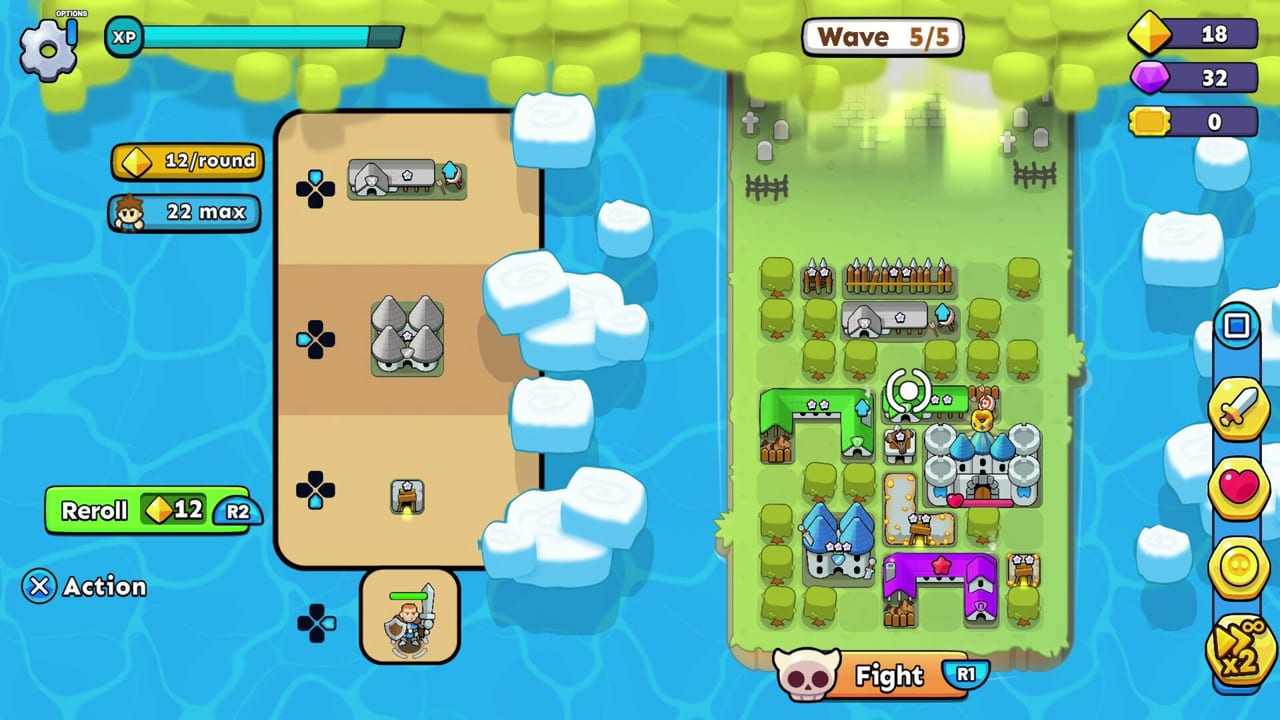
Fortress Merge is a drag-and-drop board. The same actions exist on phone, mouse, and controller; only the prompts change. Steam lists full controller support, a mouse-only option, and a keyboard-only option. Xbox and PlayStation use the same fight HUD with face-button prompts. If a YouTube video shows taps, you can still play it with a stick — you are dragging tiles, not drawing combos.
Mouse and keyboard (Steam)
- Left click and drag a shop card onto an empty tile to place, onto a matching building to merge, or off the board to sell.
- Drag placed buildings to new tiles, including the castle.
- Click Fight on the skull button to start the wave.
- Click Reroll on the shop (gold) or on the skill draft (gems).
- Click speed-up on the right rail when you trust the path.
- Gear icon opens options. Pause if you need to think; the game is not a reflex test.
You do not need hotkeys to play well. If you want them, check Options — layouts vary by build. The important muscle memory is “drag castle off the lane,” not a WASD kite.
Touch (mobile and some handhelds)
Same drags with a finger. Long-press a building if the build shows a stats popup. Shop cards sit in a tray; the board is the rest of the screen. Ads and skip tickets are mobile-first; console players may never see them. Free rewards explains which of those buttons are worth tapping.
Controller (Xbox, PlayStation, Steam gamepad)
Launch screenshots show:
- R1 — Fight.
- R2 — shop reroll or skill-draft reroll, depending on the overlay.
- Face buttons — confirm / cancel / info.
- D-pad or stick — move the cursor between tiles and shop cards.
- A hold-to-move on the highlighted building, drop to place or merge.
PlayStation dual-sense and Xbox prompts both appear in different screenshots of the same HUD. Trust the on-screen label, not a memorized Xbox letter, if you switch pads.
If the cursor starts on the castle, move the castle first. Default camera position is not a recommended formation. Placement still applies.
Menus outside a fight
Hub: campaign map, shop, hero, challenges, options. Steam item store is a separate overlay for paid packs — not a redeem box. How to redeem lists every place people waste time looking for a text field.
Hero Battle and other challenge modes use the same fight controls. Only the win condition changes.
Accessibility notes from Steam
Play at your own pace. Playable without timed input. You can pause between waves forever. Speed-up is optional. That is the whole accessibility pitch: the game waits while you think. Use that. A slow correct wall beats a fast wrong merge.
Common control mistakes
The cursor lands on a shop card and you drop it onto the castle because that was the nearest highlight. Undo if the build allows a move; otherwise you now have a mage on the keep. Drag it back to the rear row before Fight.
Speed-up hides pathing errors. If slimes walk around your wall, you will not see it at 2x. The first wave of a new map should always run at 1x.
R2 is not Fight. Players coming from shooters tap the wrong bumper and reroll a perfectly good shop. Read the prompt once per session.
On a phone, a fat-finger merge is the same as an intended merge. If you did not mean to combine two barracks, you cannot split them. Pause your brain before you pause the game — the drag is the commit.
Related pages
Frequently Asked Questions
Quick answers to the most common questions.
What button starts a wave on a controller?
Launch HUDs label Fight on R1. Always trust the on-screen prompt if your build differs.
Can I play with only a mouse?
Yes. Steam lists a mouse-only option. Drag, click Fight, click reroll.
How do I move the castle?
Drag it like any building. You cannot sell or merge it.